How to back up and restore information from Outlook Express with Outlook Express Backup Toolbox
MS Outlook Express backup software
Outlook Express Backup Toolbox
Outlook Express Backup Toolbox can backup and restore Microsoft Outlook Express files and settings with passwords in just a few clicks.
How to make a backup copy of Outlook Express
A step-by-step description of the process of creating a backup copy of your emails, identities, and accounts, including all passwords, in Outlook Express:
- Download, install and run Outlook Express Backup Toolbox from here: https://all-recovery-inc.com/download/OutlookExpressBackupToolboxInstall.exe
- Select the desired action:
- Click on the Backup button if you want to make a backup copy.
- Click on the Restore button if you want to restore the data from a backup.
- If backups are made, you need to select the following items on the second screen of the program: Identity, Account Settings, Mail Folders, Signatures, Messages Rules, Address Book, and other data to be backed up.
- Select the location on the disk and the name of the backup file.
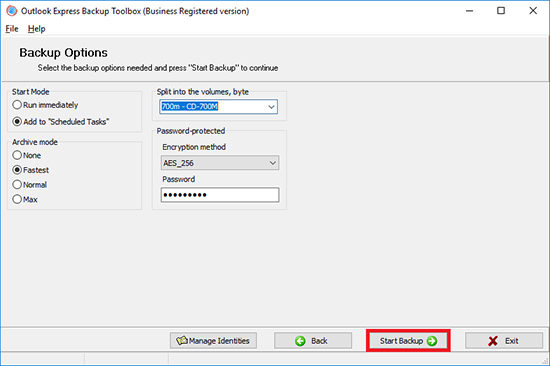
- Select the backup options:
- Start time;
- Archiving mode;
- Splitting the file into volumes;
- Encryption method and password.
- Click Start backup.
How to restore Outlook Express emails and accounts from a backup copy
A detailed guide on restoring Outlook Express accounts and emails from a previously made backup copy:
- Download, install and run Outlook Express Backup Toolbox from here: https://all-recovery-inc.com/download/OutlookExpressBackupToolboxInstall.exe
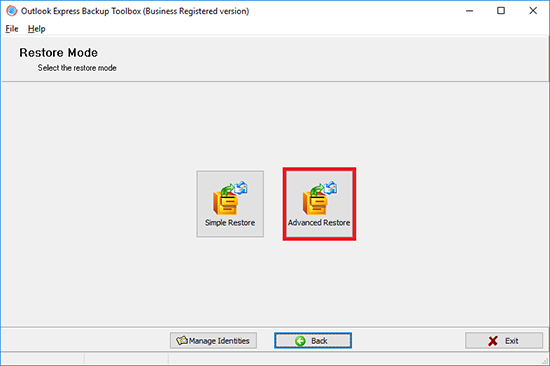
- If you are restoring from a backup, you must select the recovery mode on the second page of the program:
- Simple Restore provides simple as is data recovery.
- Advanced Restore allows you to configure particular restoration options.
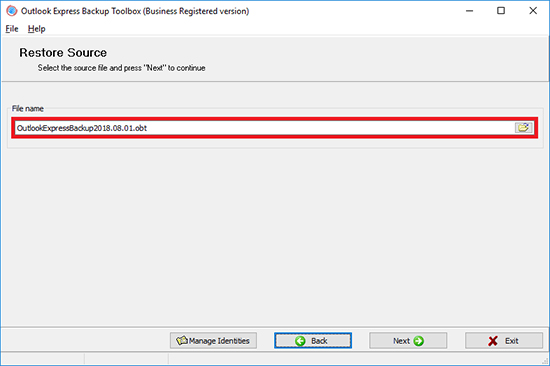
- Select the file that you previously backed up to.
- Select the data to be restored.
- Choose where to restore each Profile.
- Click Start Restore.
Nowadays e-mail is one of the main channels of information exchange not only for companies, but also for individuals. That is why you can come across very important messages, including those with all kinds of attached documents, in correspondence. Of course, losing them may do a lot of harm. Nevertheless, a lot of things may cause it, from virus attacks to incorrect actions performed by the user. That is why backing up e-mail is a very important issue.
Outlook Express is one of the most popular mail clients at the moment. Its popularity is attributed to the fact that it is included in the distribution package of all Windows operating systems starting from version 95 OSR2. It is absent from Windows Vista and later in Windows 7 where another mail client is used - Microsoft Mail. So, users quite often encounter the problem of backing up information from Outlook Express. You can solve it with Outlook Express Backup Toolbox. Let us see this process in detail.
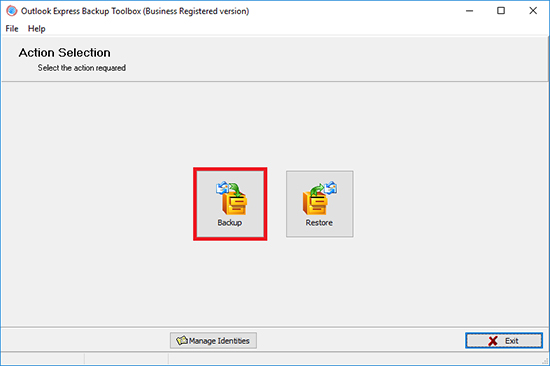
Now you can get down to the backup configuration that is implemented as a convenient step-by-step wizard. To start the process, click the Backup button.
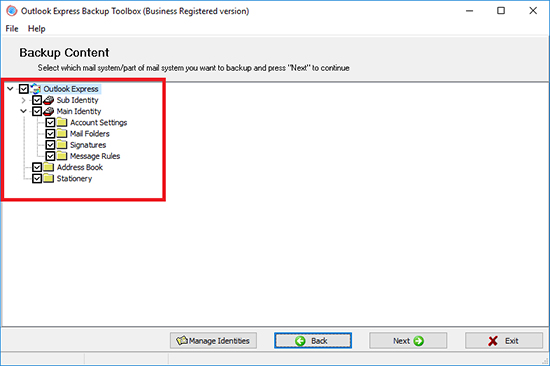
In the first step, you should specify the information that will be backed up. A tree with all existing identities (they contain all account settings, folders with correspondence, signatures and message rules) and general information (address book, stationery) is used for that. You can use checkboxes next to each section to select the data that should be backed up. You can select whole branches corresponding to identities or you can expand them and select separate parts: settings, folders with correspondence, signatures and message rules.
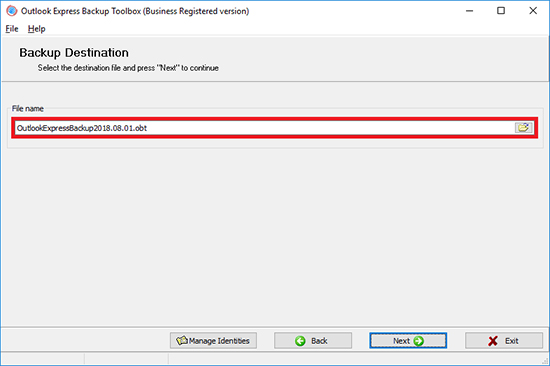
The next step comes down to selecting the file the backup copy will be saved to. You can manually type its name together with the full path to it. However, it is more comfortable to use Windows Explorer opened with a click on the  button. By the way, you should seriously consider the name of the file where the backup copy will be stored. It is advisable to specify creation date and time in it. It will allow you to avoid being confused afterwards and quickly find in your backup copies what you need. It is interesting that Outlook Express Backup Toolbox helps you with that by automatically adding the current date to the file name.
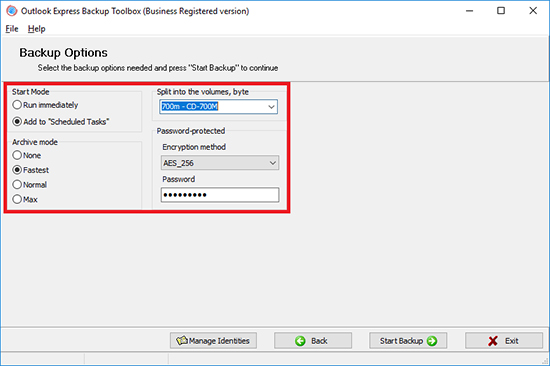
Then you should configure additional backup parameters. First of all, it is compression rate. It is specified with the help of the Archive mode radio buttons. There are 4 options available: None, Fast, Normal and Max. The more the compression rate is, the less space the backup will occupy, but the longer the information will be backed up and restored. If necessary, you can protect the backup copy against unauthorized access. To do it, you should select one of the four available encryption methods in the Encryption Method drop-down list (the classic PkZip protection or the AES algorithm with the 128, 196 or 256-bit key length) and type the access password in the Password field.
The next parameter that you should specify is splitting the backup into volumes. It is specified in the Split to the volumes field. It is empty by default. It means that all information will be saved to one backup file. If you are going to store the backup copy on removable media, you can select the appropriate option in the drop-down list: ZIP-100, CD-650 MB, etc. In this case, the program will automatically split the backup into volumes fitting onto the corresponding media. If necessary, you can type the size of these volumes manually (in bytes).
Specifying the way the task should be started is the last operation in this step. The Start Mode radio buttons are used for that. The Run Immediately option is selected by default. But since you need to configure automatic backup, select the Add to Scheduled Task option. A scheduled Windows task will be created in this case. This approach allows you to automatically start the backup process according to schedule and ensure constant secure protection for your e-mail correspondence.
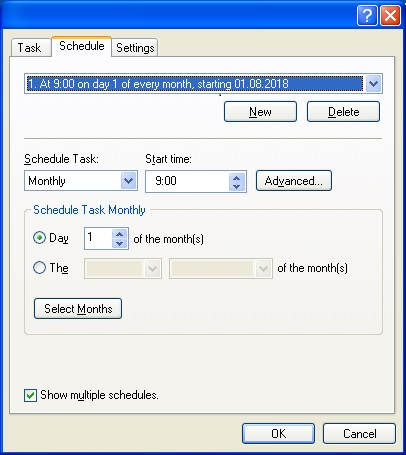
When you move on to the next step, the standard Windows New Task dialog box will appear. Its main fields will be already specified. The only thing you have to do is enter the login and password of the account under which the backup process will be started and specify the schedule: daily, weekly, monthly, when the computer is switched off, etc. One task can have several schedules, which allows you to implement a flexible information backup policy. After you save the scheduled task, it appears in the corresponding Windows folder (Start|All Programs|Accessories|System Tools|Scheduled Tasks). You can edit it afterwards, for example, change the schedule.
Now the backup configuration process can be considered complete. However, note that no backup has been created (it is created automatically according to schedule). If you need it immediately, you should leave the Run Immediately option selected. When you move one to the next step in this case, the program will ask you the following question: Do you wish to start backup process? You only have to confirm your wish and wait till the backup process is complete. The time it will take depends on the amount of the source information and the available system resources of the computer.
Information is restored from a previously created backup copy with the help of a step-by-step wizard as well. To start it, you should click the Restore button after starting Outlook Express Backup Toolbox. After that the program will offer you to choose one of the two methods for restoring information: Simple Restore and Advanced Restore. The difference between them comes down to the following: if you use the first method, all data stored in the backup is restored, while the second method allows you to select the necessary information and also restore it not into source, but new identity. You select the backup file in the next step. You can type its name and the full path to it manually. But of course it is better to use Windows Explorer opened with the button.
If the first method is selected and you move on to the next step, the program will show the warning that all data currently existing in Outlook Express will be deleted and ask whether you want to copy the data. If you answer yes, the restoring process starts.
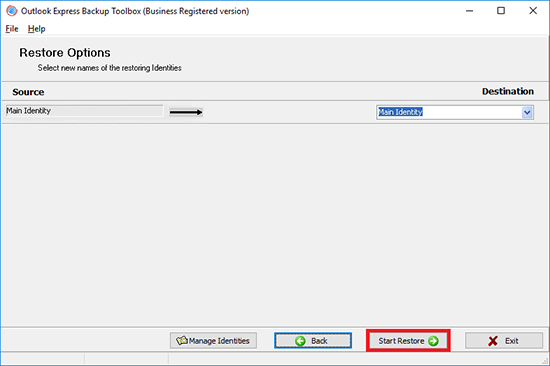
If you select the advanced method, you will be offered to specify the necessary data after the backup copy is selected: identities (account settings, folders with correspondence, signatures, message rules) and general information (address book, stationery). You can do it with the help of the tree already mentioned above. The only difference will be that it contains not the information currently existing in Outlook Express, but data from the backup. You should select the identity the information will be restored to. By default, the account that was backed up is selected in the Destination drop-down list. However, you can restore the data to a new identity if necessary. To do it, just select the New Identity item in the drop-down list and enter the name of the identity you want to create. This approach allows you to restore all information keeping the currently existing data.
After that start the process. Its duration depends on several factors, mainly on the amount on information and the available system resources of the computer. Note that you should close Outlook Express before you start copying the data. Otherwise errors will occur during the process and it will be completed incorrectly.
Thus, Outlook Express Backup Toolbox is a great tool for backing up the entire information from the Outlook Express mail client. It possesses all features necessary to solve this problem with high quality. It should also be mentioned how easy it is to use the program. Anyone can use it to back up data, even if the user is only learning how to work with the computer.
Identity Manager
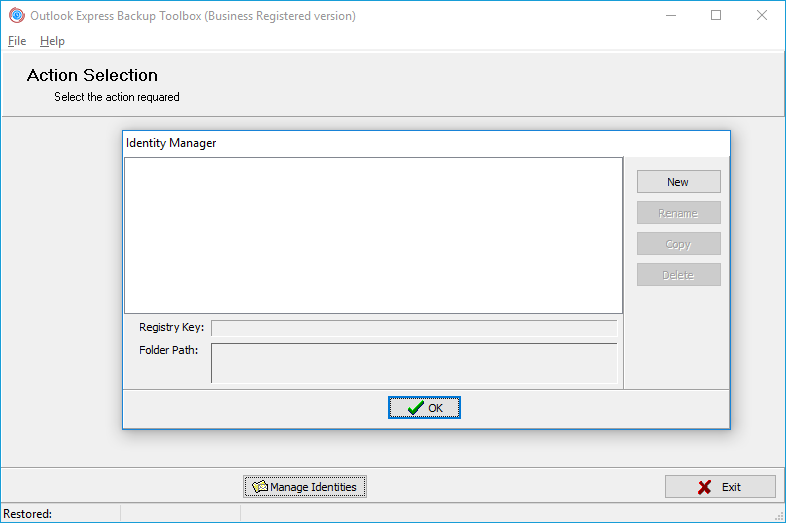
The so-called Identity Manager is an additional feature available in Outlook Express Backup Toolbox. It is a special module that can be used to manage Outlook Express identities, which allows you to configure this mail client for being used by several users. You can start the Identity Manager with the  button. Its list contains all currently existing accounts. You can do anything with it: Copy identities, Edit them, Delete them and also create New identities.
Requirements:
- Windows 98/Me/2000/XP/Vista/7/8/10/11 or Windows Server 2003/2008/2012/2016 and above
Screenshots:
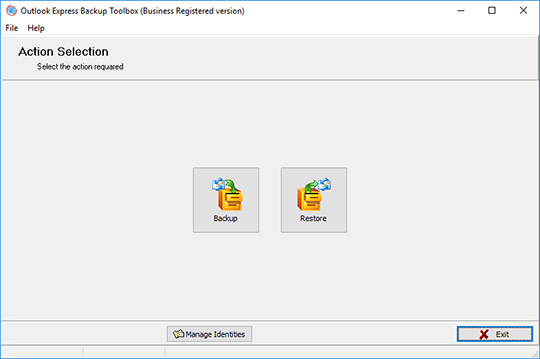
Backup: Select the mode
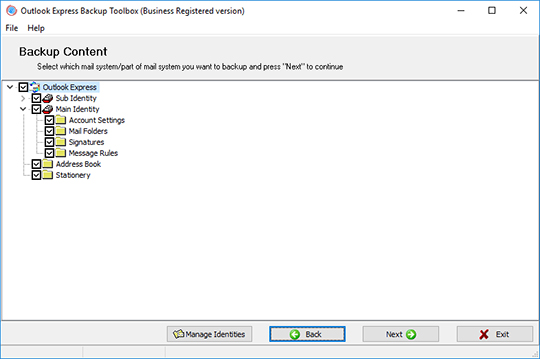
Backup: Select the information you want to back up
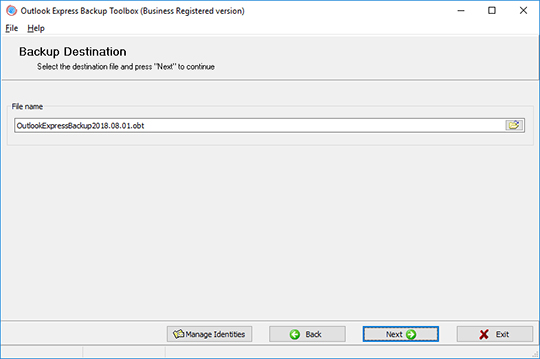
Backup: Select the file the backup copy will be saved to
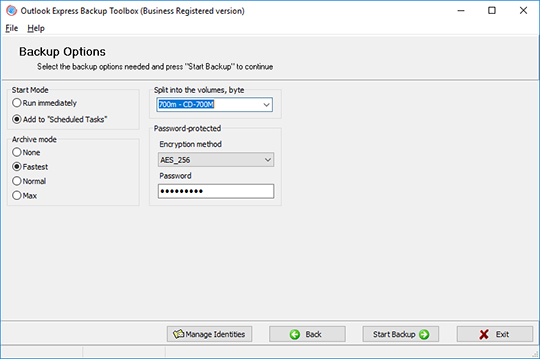
Backup: Configure the backup parameters
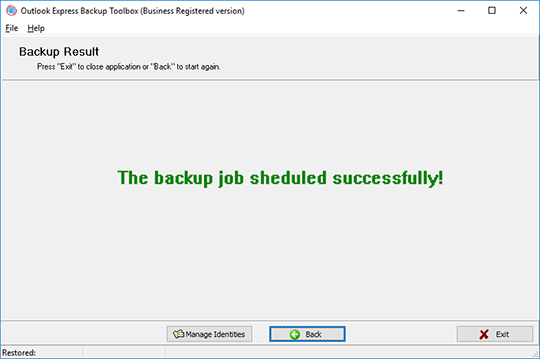
Backup: Finish the process
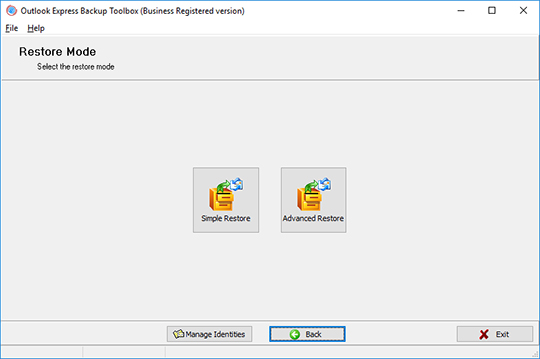
Restore: Select the restoring mode

Restore: Select the backup copy
Restore: Select the information you want to restore
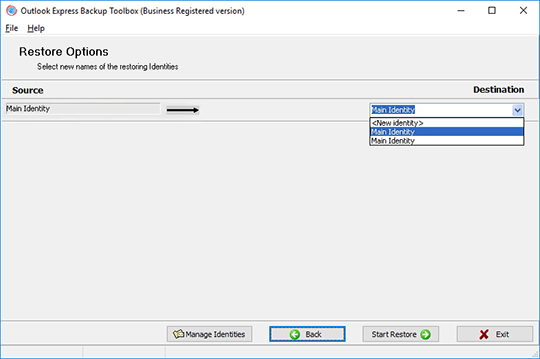
Restore: Select the identities to restore the information to
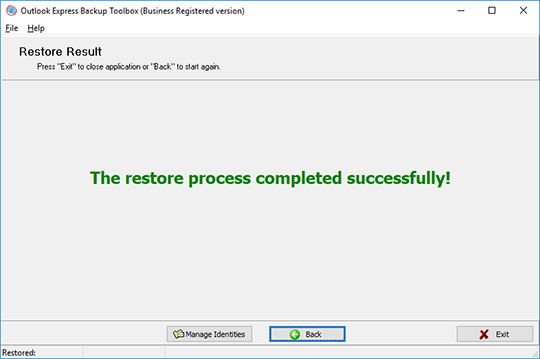
Restore: Finish the process
How it Works:
Download software from website. Download
Start Install software:
- Press on downloaded installation file in browser

- Select a downloaded installation file in Windows Explorer and press Enter or double click on it.
Please confirm warning message:
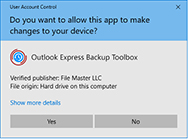
Run installation wizard:
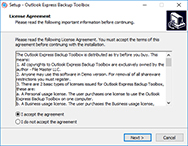
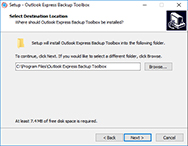
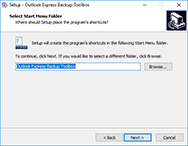
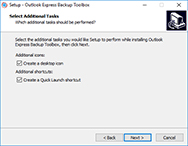
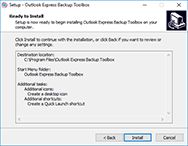
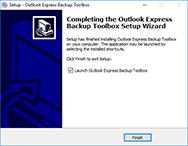
Run program:
- Double click on icon on desktop
or
- Select from main menu: Start | Programs | Outlook Express Backup Toolbox | Outlook Express Backup Toolbox:
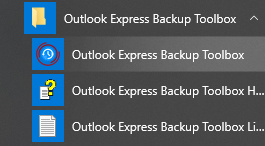
Select the desired action:
- Click on the Backup button if you want to make a backup copy
- Click on the Restore button if you want to restore the data from a backup
If backups are made, you need to select the following items on the second screen of the program: Identity, Account Settings, Mail Folders, Signatures, Messages Rules, Address Book, and other data to be backed up:
Select the location on the disk and the name of the backup file:
Select the backup options:
- Start time;
- Archiving mode;
- Splitting the file into volumes;
- Encryption method and password.
Click Start backup:
If you are restoring from a backup, you must select the recovery mode on the second page of the program:
- Simple Restore provides simple as is data recovery
- Advanced Restore allows you to configure particular restoration options.
Select the file that you previously backed up to:
Select the data to be restored:
Choose where to restore each Profile:
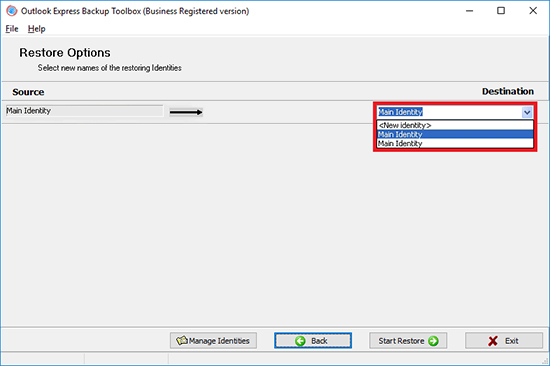
Click Start Restore:
Video:
Online help:
Outlook Express Backup Toolbox (Download) is used to back up information from the Outlook Express mail client and restore it in case it is damaged.
To back up the information, you should complete the following steps:
The step-by-step manual for Outlook Express Backup Toolbox
To restore information from a previously saved backup copy to Outlook Express, you should complete the following steps:
- Select the restoring mode
- Select the backup copy
- Select the information you want to restore
- Select the identities to restore the information to
- Finish the process
Using the Identity Manager comes down to the following:

The Backup Mode
Outlook Express Backup Toolbox can work in two modes.
- Backup - backing up information from Outlook Express.
- Restore - restoring information from a previously created backup copy.
To start the Backup Wizard, click the Backup button. Click the Restore button to open the Restore Wizard.
2. Select the information you want to back up
After you start the Backup Wizard, the program will shows a tree with all Outlook Express information that can be backed up. The top level contains the list of available identities and data common for all users. Information related to specific identities is located on the second level. You can use Outlook Express Backup Toolbox to back up the following data.
- Account Settings - the account settings of a particular identity.
- Mail Folders - folders with the correspondence of a particular identity.
- Signatures - signatures from a particular identity.
- Message Rules - rules for processing mail for a particular identity.
- Address Book - the Windows Address Book used in Outlook Express.
- Stationery - common messages templates.
Select the checkboxes of the information you want to back up. You can back up either whole identities or only part of their data.
Click the Next button to move to the next step.


3. Select the file the backup copy will be saved to
Use the File name to specify the name of the file the backup copy will be saved to. When you move to this step, the program will generate this name automatically according to the following template: Outlook Express Backup [current date].obt. The date in the name makes it easier to find the necessary backup copy when you restore information. There are two ways to change the default name.
- Type the name manually. In this case, you should specify the full path to the file, otherwise the backup copy will be created in the Outlook Express Backup Toolbox folder.
- Select the file name in Windows Explorer opened with a click on the button.
Click the Next button to move to the next step.
4. Configure the backup parameters
You should configure 4 backup parameters in this step.
Select one of the two available modes to start the process in the Start Mode group.
- Run immediately - start creating a backup copy after you finish configuring the parameters.
- Add to Scheduled Tasks - add a new scheduled task in Windows.
Specify the compression rate for the backup copy in the Archive Mode group: None, Fast, Normal and Max. The more the compression rate is, the less space the backup copy will occupy, but the longer it will take to create it.
If you plan to save the backup copy to removable media (or just split it into several volumes), select the type in the Split to the volumes, byte field: 3.5" floppy disks, ZIP 100 drives, 650 MB CD ROM, 700 MB CD ROM. In case the backup copy exceeds the specified size, it will be split into several volumes so that each volume fits onto the corresponding media. If you want to split the file into volumes of another size, enter it into this field manually (in bytes). If you do not want to split the backup copy into volumes, leave the Split to the volumes, byte field empty.
If you want to protect the information in the backup copy against unauthorized access, use the Encryption method drop-down list in the Password Protected section to select the protection method. The following options are available:
- No Encryption - protection is disabled.
- PkZip Classic - standard PkZip protection.
- AES_128 - encryption with the AES algorithm with the 128-bit key length.
- AES_196 - encryption with the AES algorithm with the 196-bit key length.
- AES_256 - encryption with the AES algorithm with the 256-bit key length.
After that use the Password field to enter the password that will be used to access the backup copy.
Click the Start Backup button to move to the next step.

5. Configure a scheduled task in Windows
You have to complete this task only if you select the Add to Scheduled Tasks mode in the previous step. When you move to it, the program creates a scheduled Windows task and opens the dialog box with its properties. If there are several accounts used in the operating system, enter the necessary account name into the Run as field, click the Set password button and specify the password.
One task can have several schedules, which allows you to implement a flexible information backup policy. After you save the scheduled task, it appears in the corresponding Windows folder (Start|All Programs|Accessories|System Tools|Scheduled Tasks). You can edit it afterwards, for example, change the schedule.
To specify the schedule for the task, switch to the Schedule tab and click the New button. Select the schedule type in the Schedule Task: drop-down list: daily, weekly, monthly, once, at system startup, at logon, when idle. Then specify advanced schedule options (start time, days, dates, idle time). These options depend on the selected type.
If necessary, you can create several schedules to start this task. To enter a new schedule, click the New button and specify its options.
To save the scheduled task and move on to the next step, click the OK button.
If you select the Add to Scheduled Tasks mode and configure the Windows scheduled task, the program will show you the message that the wizard has successfully finished its work. Note that no backup copy will be created in this case. From now on, the information will be backed up automatically according to the specified schedule.
If you select the Run immediately mode, the following question will appear on the screen: Do you wish to start backup process? Make sure that Outlook Express is not running, click the Yes button and wait till the backup process is complete. Its duration depends on the amount of source data and the system resources of the computer. After it is complete, the program should show you the message that the backup copy has been successfully created.


The Restore Mode
There are two modes of restoring information in Outlook Express Backup Toolbox.
- Simple Restore - just restore the entire information from the backup copy. This mode does not require any special knowledge and it is recommended for most users.
- Advanced Restore - restore information selectively, you can select the information from the backup copy you want to restore and the identities to restore it to. In case you use this mode, you should have an idea about the structure of data in Outlook Express.
After you start the Restore Wizard, select the necessary mode by clicking the button with its name.
Use the File name field to specify the name of the file with the backup copy previously created with Outlook Express Backup Toolbox. There are two ways to do it.
- Type the file name in the corresponding field manually. You have to specify the full path in this case.
- Select the file name using Windows Explorer opened with the button.

3. Select the information you want to restore
You will see this step only if you select the Advanced Restore mode. It comes down to selecting the information that will be restored from the backup copy. When you move to this step, the program will show you the tree with all data in the selected backup copy. The top level contains the list of identities and data common for all users. Information related to specific identities is located on the second level. With Outlook Express Backup Toolbox, you can restore the following data (of course, if it was saved to the backup copy earlier).
- Account Settings - the account settings of a particular identity.
- Mail Folders - folders with the correspondence of a particular identity.
- Signatures - signatures from a particular identity.
- Message Rules - rules for processing mail for a particular identity.
- Address Book - the Windows address book used in Outlook Express.
- Stationery - common messages templates.
Select the checkboxes of the information you want to back up. You can back up either whole identities or only part of their data.
4. Select the identities to restore the information to
You will see this step only if you select the Advanced Restore mode. In this step, you should select the identities the information will be restored from the backup copy to.
When you move to this step, the program will show you the list of all identities data from which was selected for restoring in the previous step. Select the identities to copy the information to for all restored identities. To do it, you can use the drop-down lists next to them (they contain all identities existing in the system). If you want information from some identity to be copied to a new identity, select the New identity item in the corresponding drop-down list and enter its name.
Click the Start Restore button to move to the next step.


When you move to this step, the program will show the following message: Do you wish to start restore process? Make sure that Outlook Express is not running, click the Yes button and wait till the restore process is complete. Its duration depends on the amount of source data and the system resources of the computer. After it is complete, the program will show the message that the information has been successfully restored from the backup copy.
Working with the Identity Manager
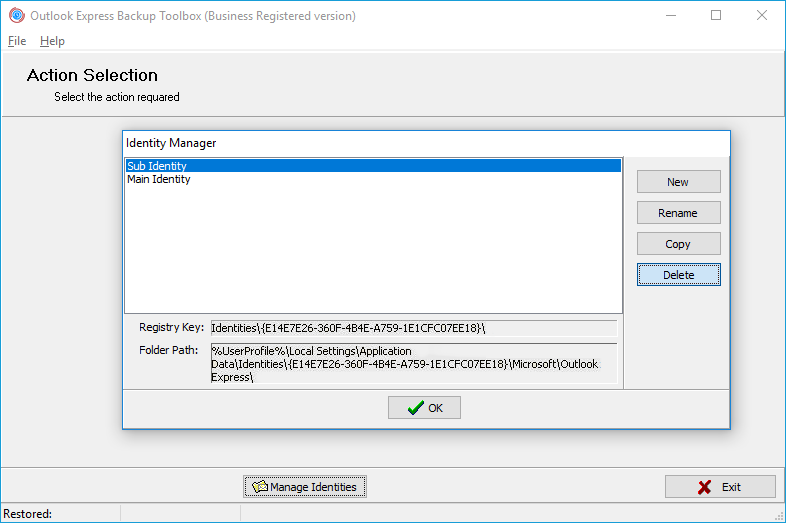
The Identity Manager is an additional tool in Outlook Express Backup Toolbox you can use to perform any operations with identities. It is a separate window with the list of all identities existing in the system. When you select any of them, the folder and the registry key related to it will be shown in the corresponding fields.
Start Outlook Express Backup Toolbox and click the Manage Identities button. You can open it at any time in any step of any wizard when you work with the program.
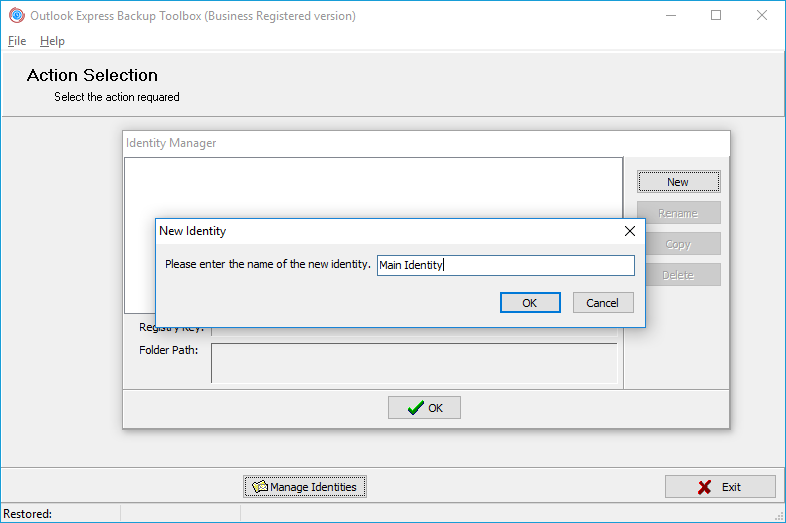
Click the New button. After that you will see the dialog box where you can specify a name for the new identity. Type it in the corresponding field and click the OK button.
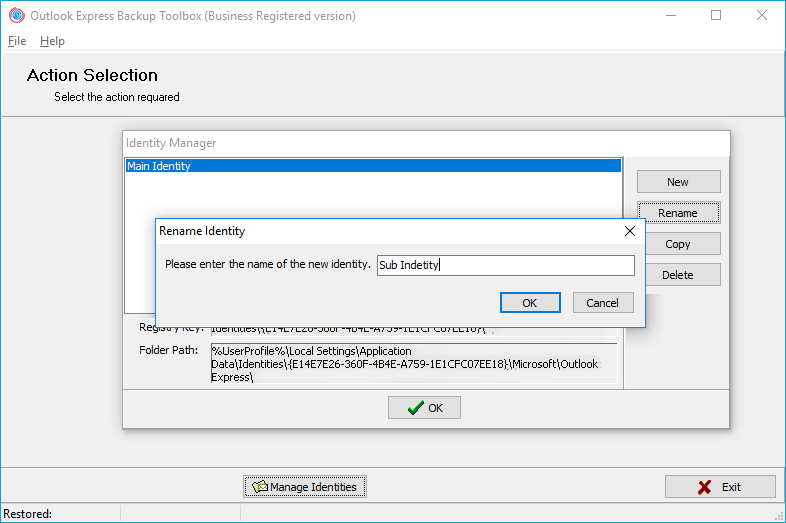
Select the identity you want to rename and click the Rename button. After that you will see the dialog box where you can specify a new name for the identity. Type it in the corresponding field and click the OK button.
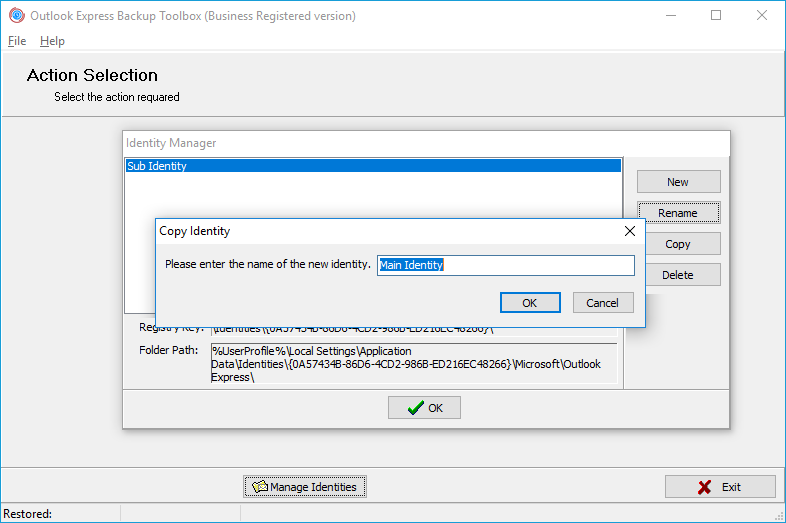
Select the identity you want to copy and click the Copy button. After that you will see the dialog box where you can specify the name of the new identity. Type it in the corresponding field and click the OK button.
Select the identity you want to delete and click the Delete button. The identity will be deleted at once.
Buying Outlook Express Backup Toolbox:
Site License
for using on several computers of the customer (up to 100 electronic devices) in one building or distributed between several buildings
- An email with a registration code and instructions for activating this code will be sent to the user immediately after the payment confirmation.
- An email with a registration code will be sent from several different mail servers to prevent messages from appearing in SPAM filters. Accordingly, a possible duplication of registration letters received in the user's mailbox.
- To activate the registration code, you need to run the application in Windows under a user with Administrator rights.
- The number of Personal, Business or Site licenses activated simultaneously must not exceed the number of purchased licenses.
- We sell software via registration services PayPro Global and Noventiq. That is why not Recovery Toolbox, but the corresponding company will be specified in the payment documents.
The purchased registration key is valid for all 2.x versions of Outlook Express Backup Toolbox.
Buying the License Renewal
Business License - 1 Year prolongation
for legal use in enterprise, commercial and governmental environments
Payment Services:

PayPro Global (PayPro Global, Inc., 250 The East Mall street, Etobicoke, ON Canada, M9B 0A9) is the fastest growing eCommerce company that develops customized solutions to help software producers to easily and effectively sell software online. PayPro Global supports more than one hundred currencies, all major credit cards, and a wide variety of payment options. PayPro Global offers efficient customer support 24/7 and provides personal attention to customers having special requirements.

Noventiq online store for licensed software opened in 2004. Noventiq offers customers over 15,000 programs from 3,000 developers, provides fast delivery (electronic and physical), accepts 20 payment methods, and includes a cumulative discount system. Noventiq specialists provide customers with all the necessary advice for purchasing licensed software. Selling software is our profession!
Resources:
- Microsoft Outlook Express on Wikipedia: https://en.wikipedia.org/wiki/Outlook_Express